0:00
We all like using Linux right and we have so many distributions to choose from
0:05
And there are some times when we need to know about these distributions that we are using
0:10
For example, you may want to know what kind of theme or dexter of environment you are using or the
0:14
version that you are using or the code name of your distribution. So there are many different things that you may want to know about your current distribution
0:22
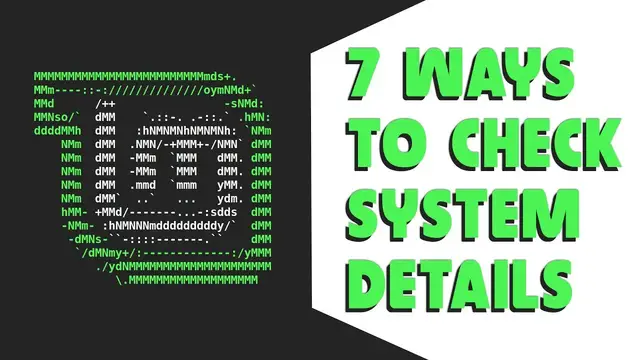
For that, in this video I'm going to show you seven different ways to know about your Linux distribution
0:28
So let's get started. So here is the terminal and the very first command that I'm going to show you is
0:32
U-name, that's A. If you type this command it will give you information regarding the distribution
0:39
that is Ubuntu in my case, the kernel version, the username, the architecture. So this is one of seven
0:45
commands. Next we have LSB underscore release and again dash a as a parameter. This will provide
0:54
you only distro specific details like its name version and code name. If you want to know the complete name or a little bit more information about your distribution, there is another command that is host name CTL. So if you type and this will give you some more information about your computer or the Linux distribution that you're using
1:15
Apple distribution has a release file that is inside the ETC folder where all the configuration files resides right. So if we see through file, that is CAD is for freeing into a file, right? You can
1:28
display content of the file using this command. I will cd to ETC then there is a file by the name OS release and if I hit enter this will output a little bit more information about the distro For example complete name is discord dingo and it is Ubuntu of course and it is based on Debian and it
1:47
also shows me some links for example this is the official URL and this is help URL
1:53
where you can get the support you can report bug at the launch pad so using these commands you can
1:59
get the basic information about your distro there are some utilities as well for example
2:04
there is an application known as screen fetch so if you type screen fetch and hit
2:09
enter this will output a little bit more information in a very fancy way for example
2:15
we have an ask i logo of the distribution and these are details it also shows some hardware-related
2:21
information they found the icon theme gtigate theme window manager theme that is cell theme basically
2:26
and the text of environment that i have the skin resolution and these all details right
2:32
There is a similar application as well and it is new fetch. So let me clear the terminal using Control L and if I type NewFetch, hit enter and it will show me similar information as it was with screen fetch
2:45
These are the base using the terminal but you can also use your settings
2:49
For example, if I go into settings then here. So these are the settings and if I go into details then about and I can see the information about the system
3:00
So every distribution comes with the settings application. You can search in the menu, hit the menu type setting and it will show the application name
3:09
So this way you can get the information about your Linux distribution
3:14
So that's all in this video. I hope you find it informative. If you did, then hit the subscribe button and like the video
3:20
I'll catch you in the next one. Till then, take care and keep enjoying Linux