live_tv
Livestream Starting Soon
00
Hours
:
00
Minutes
:
00
Seconds
Up next in 10


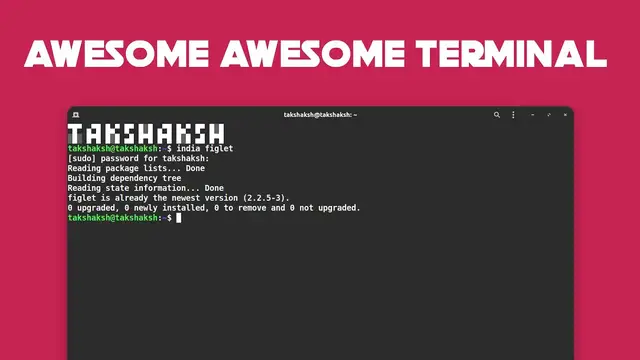
In this video, you will learn how to style your terminal and make it look awesome. Just follow along with the video, you will also get to know about a lot of other Linux related stuff as well.
|| Theme link ||
https://www.gnome-look.org/p/1357889/
➟ Running Android apps in Linux
➟ https://youtu.be/7J2c2iUL5XQ
➟ Best 5 icon packs for Linux | 2020
➟ https://youtu.be/Nu1802I7fC4
➟ How to make you Linux distro look amazing
➟ https://youtu.be/hJYsz1dWnDQ
➟ Albert - An amazing keyboard launcher
➟ https://youtu.be/aBZNOf0SqyE
➟ Best 5 Gnome extensions
➟ https://youtu.be/IUQ0AC3-OlM
Show More Show Less View Video Transcript
0:00
Hello there and welcome to Linux S2O and in this video I'm gonna show you how you can make a boring
0:09
looking terminal look very amazing so this is the terminal that you have with the Ubuntu by default
0:17
so here is the terminal and you can see it does not look that much of amazing but we can make it
0:26
look amazing so if you want to make this terminal look like something this so let me just minimize
0:32
this and to show you my primary terminal that I have so this is my primary system and this is my
0:40
terminal and the terminal looks really really amazing and the text is really coming up with
0:46
the theme so this is how it looks like so it has a good text the color combination and some kind of
0:54
for presenting a text over the top. So let me show you how you can do this in your system and make your terminal look amazing
1:05
So this is a host that I have set up with my virtual box
1:09
So this is the default terminal. So first of all what we wanna do is we want to get a theme that will go with the design
1:17
So I'm gonna give you two links in the description. Using that link you will be able to download these two files
1:24
So these are the archive file for Orches theme. So just extract this file here and paste this file into the themes folder
1:34
So I am going to cut from here and I am going to home then I will press control h to view
1:40
the hidden files and I will find the dot themes folder. And if you can't find the folder like it is not available here then you can create a new folder
1:49
Just right click and type dot themes. Remember to type . before the folder name
1:58
So this is the newly created folder and if you already have then don't worry just paste
2:03
the theme files here Then you need something known as gnome tweak tools And this is for GNOME desktop environment but if you are using any other desktop environment then you probably have it by default
2:17
Just different name. So this tool you can install using the link I'll provide in the top right corner there
2:24
will be a video watch that and you will be able to install this tool in your system if
2:28
you don't have it. So just go to appearance and choose the newly installed theme
2:34
application theme just click on Orges Dark Compact and inside this Orges Dark
2:42
Compact. Okay so I'm just going to cross this window here and I'm going to enter
2:49
the terminal again. Now it has started to look a little bit appealing so I'm
2:53
going to change the settings of this terminal so this is the default settings
3:02
window so I'm just going to select your custom font and you will have to select
3:07
this monocap bold so you can find it here and make the font to 14 and select
3:15
it so this will increase the font and change the default font and you want to
3:19
change the initial size of the terminal so this is the size of the terminal
3:24
initial so I'm going to make look like something this so this is 95 cross 22 so
3:31
So I am going to make it 95 x 22 and I am going to leave the settings like this
3:44
And I am going to use here a custom theme. So just uncheck that and choose any theme that you want
3:50
So I am going to go with the default theme. And I am going to just change here the build in schema to Linux console
4:00
So that way it will look different. And let me close this window here
4:05
Now let me open the terminal again. So this is how it looks now
4:10
And I am going to install new fetch in the system to get that information So just type sudo apt install new fetch Okay it already installed in the system
4:24
Let me just run it again. neo fetch. So this is the application
4:35
I have to change the size again. So this is how it is looking now
4:39
But the wallpaper is not looking very good. So I am going to the download folder again and I have this wallpaper
4:46
You will find the link to this wallpaper also in the description below
4:50
So let me just change the wallpaper. Now it will look good
4:59
So if you want to have that presenting text on this on the top of this beam then what
5:05
you can do you can simply go to your file manager then go to home
5:11
control h to view the hidden files and there you will find this file .basrc and if you don't
5:16
have then don't worry just create a new file by this name .basrc and open this file. Inside this
5:24
file you can execute commands and cell scripts so i'm just going to use a tool known as figlet
5:31
so before using that tool you have to install it so i'm going to the terminal i'm going to type
5:35
sudo apt install figlet and this will take few seconds because it's a very
5:42
little tool so what figlet can do it can figlet basically so you just type figlet
5:49
and any text that you want for example linux h2o and this will turn it into
5:58
figlet you can also try different styles for example if I type figlet then this
6:04
There is a style called powell. So if I type linux h2o and this will make it look like this
6:15
So I am going to paste this command inside that file. bash.rc file
6:21
Just select this command and copy it from here And go inside this file So here is the file and just paste that command at the end of the file
6:37
So just simply paste it. So this is figle-f and this is the command
6:41
So I am going to save this file and I am going to close the terminal and start it again
6:46
Now you can see this presenting text over the top of this beam
6:51
So you can paste anything that you want. For example if you want some fancy text there then you can visit appsymbols.com
7:00
I think that's the name of the website. So just to type appsymbols.com
7:06
Here you can find different kind of symbols. For example if your name is boss Watson then you can type there Watson and it will show
7:16
you different types of the design by the name of Watson. So for example if you like this design here then you can simply copy from here and go
7:26
inside the file let me just... Okay this is making me sick so I am going to preferences and I am going to uncheck this
7:39
box here so that it won't highlight that line. So I am going to add a pound sign here so this will make it a comment so it will not
7:48
execute now and I'm going to type here echo to print something and anything that you want
7:53
to print. So I'm just going to paste that name copied name from there and save this file
7:59
Again if I open the terminal again now you can see the bots name is written over there
8:07
and you can use any symbols from the website that you want to display when you open your terminal
8:15
So there are a lot of designs over here. So you can use any of these
8:19
So that way you can make your terminal look amazing and not boring like the default ones
8:26
that you get with your Linux distro. So that was it in this video and I hope you liked it and if you did then don't forget
8:33
to subscribe to the channel and leave a comment below. I'll catch you in the next one till then take care and keep enjoying Linux
#Software
#Online Goodies
#Skins, Themes & Wallpapers